
UmayNow
Help CenterTürkçe
Getting started
Signing up and first setupFinding your way aroundThe account menuUsing UmayNow on your phone
Your profile
Profile sectionsOpen To: work, co-founding, mentoringBadges and ringsProfile analytics and visitors
People and connections
Adding and following peopleSuggestions: why am I seeing this person?The People and Companies pagesWriting and receiving recommendationsMute, block and not interested
Messages
The inbox: Smart, Relevant, OtherMessaging someone without connectingMessage Firewall: a note before people writeNot interestedThe chat window
Meetings and calendar
Proposing a meetingAnswering, rescheduling and cancellingMy meeting hoursBooking a free slotReminders and time zonesCalendar and calendar subscription
The Feed
How the Feed worksPost types and sharingWho sees and who can replyLike, Amplify and commentsSave, share, report, deleteThe Looking for work post
Goals and matching
What your goals changeFinding a co-founderFor people who want to investFor startups raising moneySupport organizations and mentorsHow early-stage companies get featured
Companies
Opening a company page and its tabsTeam, departments and employee approvalCollaborations and partnershipsThe Community tabInstitutions: members and closed groupCompany analytics and trust scoreTransferring or deleting a company
Listings and opportunities
Posting a job and applicantsBusiness opportunities: Need and OfferApplying and My Applications
Ecosystems
How ecosystems work
Groups
Creating and joining groupsManaging a group
Events
Attending eventsOrganizing an event
Trust
Trust score and verification
Search, updates and saved
SearchUpdates (notifications)Saved
Settings and account
SettingsPassword and sign-inDeleting your account
Partner program and support
The partner programReporting a bug or a suggestion
All topics
Getting started
Signing up and first setupFinding your way aroundThe account menuUsing UmayNow on your phone
Your profile
Profile sectionsOpen To: work, co-founding, mentoringBadges and ringsProfile analytics and visitors
People and connections
Adding and following peopleSuggestions: why am I seeing this person?The People and Companies pagesWriting and receiving recommendationsMute, block and not interested
Messages
The inbox: Smart, Relevant, OtherMessaging someone without connectingMessage Firewall: a note before people writeNot interestedThe chat window
Meetings and calendar
Proposing a meetingAnswering, rescheduling and cancellingMy meeting hoursBooking a free slotReminders and time zonesCalendar and calendar subscription
The Feed
How the Feed worksPost types and sharingWho sees and who can replyLike, Amplify and commentsSave, share, report, deleteThe Looking for work post
Goals and matching
What your goals changeFinding a co-founderFor people who want to investFor startups raising moneySupport organizations and mentorsHow early-stage companies get featured
Companies
Opening a company page and its tabsTeam, departments and employee approvalCollaborations and partnershipsThe Community tabInstitutions: members and closed groupCompany analytics and trust scoreTransferring or deleting a company
Listings and opportunities
Posting a job and applicantsBusiness opportunities: Need and OfferApplying and My Applications
Ecosystems
How ecosystems work
Groups
Creating and joining groupsManaging a group
Events
Attending eventsOrganizing an event
Trust
Trust score and verification
Search, updates and saved
SearchUpdates (notifications)Saved
Settings and account
SettingsPassword and sign-inDeleting your account
Partner program and support
The partner programReporting a bug or a suggestion
Help Center / Messages

The inbox: Smart, Relevant, Other

Messages opens with the Messages button at the bottom right. First messages from people you don't know are split into three tabs by how well the sender's profile fits yours, so important ones don't get lost.

Where: The Messages button at the bottom right; Messages in the bottom menu on a phone

What's on the screen
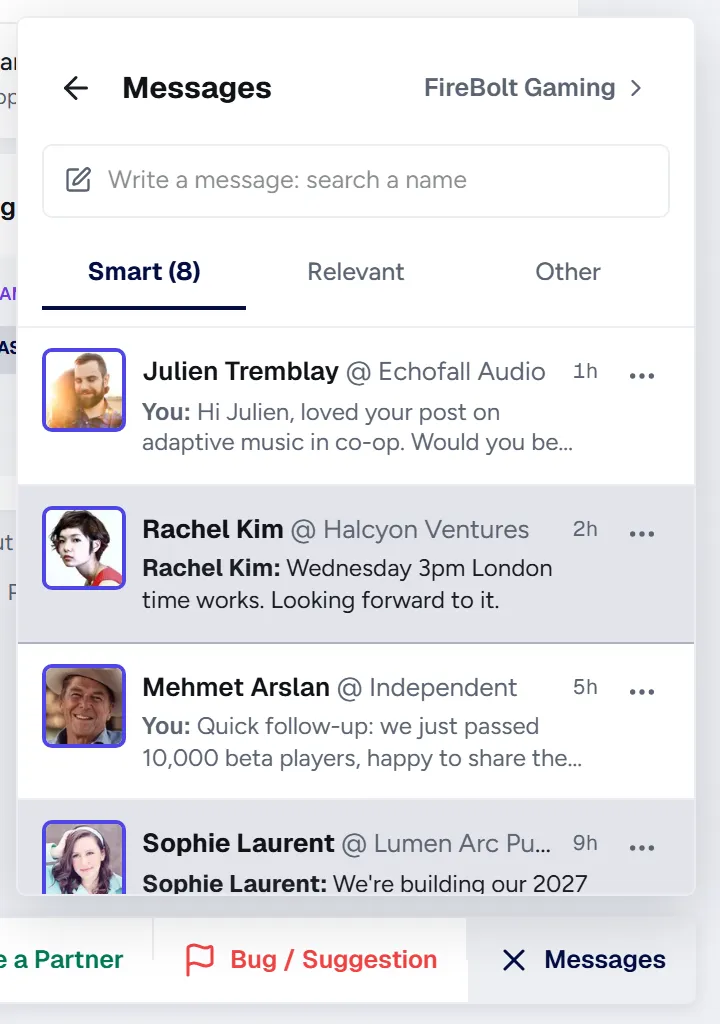
The Messages panel
1234
The Messages panel
  1. 1Smart: Your connections, people you already replied to and the best fits.
  2. 2Relevant: First messages from people whose profile overlaps with yours to some degree.
  3. 3Other: Low-fit first messages and conversations you marked Not interested.
  4. 4Write a message: Start a new conversation. The search shows your connections first.

Good to know

  • Under a first message from someone you don't know, a short line says why it is in that tab, for example Matches your need.
  • A conversation's tab is decided when the first message arrives. It doesn't move if the sender edits their profile later.
  • Once you reply to someone, they move to Smart.
  • The three-dot menu on a row lets you mute the conversation, block the person or report them.

Related topics

The chat windowMessaging someone without connectingNot interested
Mute, block and not interestedMessaging someone without connecting

Didn't find what you were looking for? Write to us: info@umaynow.com